
In this guide
To back up a NES or GBA game in WASM Arcade, open the game and choose Export current state. Keep the downloaded .wasmarcade-save.json file outside the browser. To restore it, open the same game file and choose Import a save backup. No account is needed for this local backup workflow.
Practice with the free Star Catch demo
Star Catch is our original MIT-licensed NES game. It lets you try this workflow without supplying a game file. It starts automatically and has no audio.
- Open your library and choose Try a demo.
- Wait for the game to start, then choose Add demo to my collection. Preview mode alone does not keep progress or enable backup exports.
- Use Left and Right, or the touch direction pad, to move the blue paddle and catch gold stars.
- Choose Export current state in the save panel. Keep the downloaded JSON file in a folder you can find again.
- Play a little further, then choose Import a save backup and select your export.
- Check that the earlier game state has returned. Importing turns automatic saving off. Choose Save here in a manual slot to keep the restored progress, or enable Auto-save when you are ready.
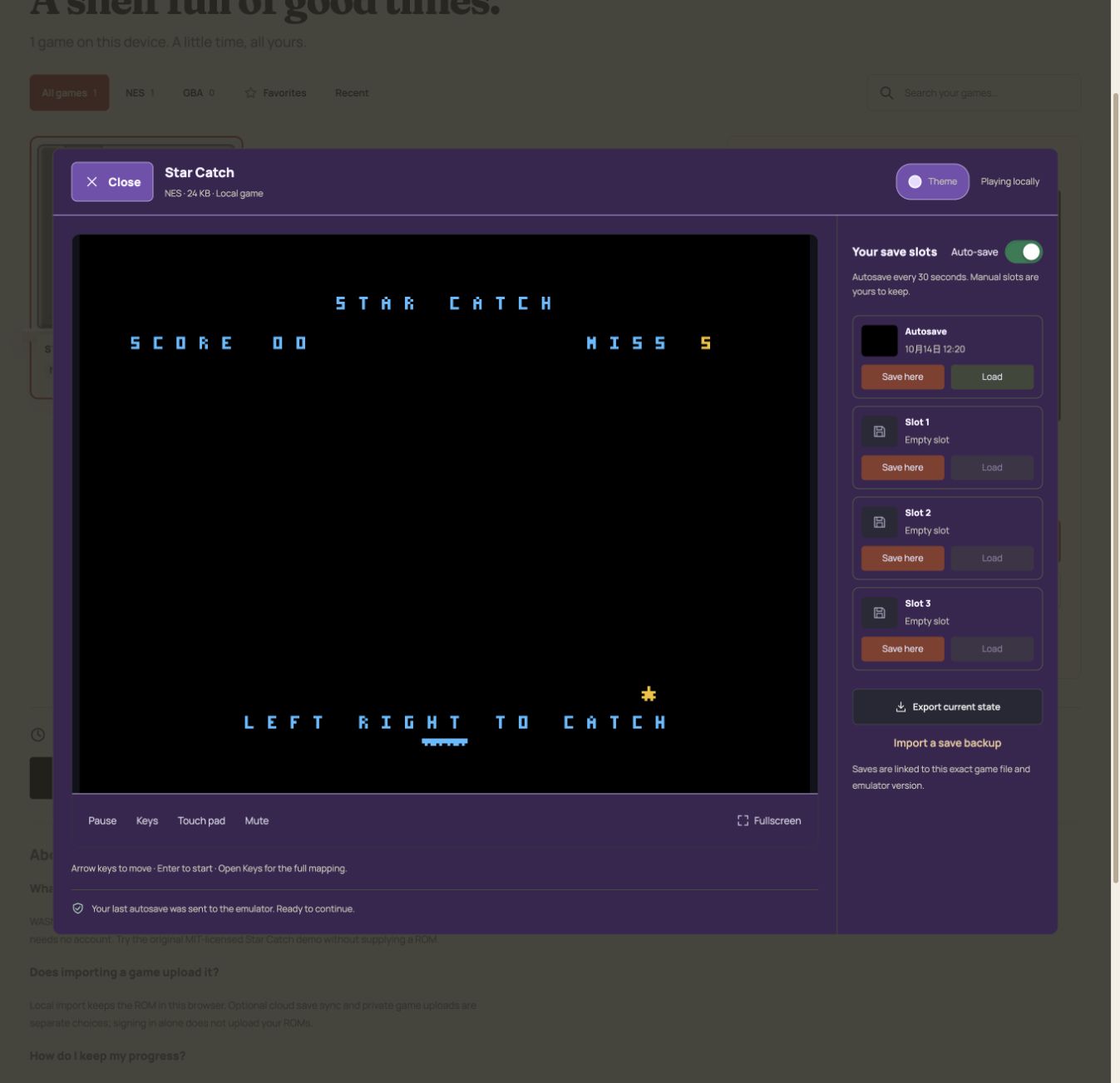
You can inspect the reproducible game source, demo instructions and MIT license. This is a reproducible walkthrough, not a promise that every NES or GBA game is compatible.
What is the difference between local saves, exports and cloud sync?
- Local save slots
- Each game has one automatic slot and three manual slots in this browser. Automatic saves run every 30 seconds while the page is visible and attempt a final save when you leave the player. Browser storage can be cleared or evicted.
- Exported backup
- A downloaded file you keep outside browser storage. It contains an emulator save state, not the ROM. You need the same game file and a compatible engine version to restore it.
- Optional cloud sync
- When account features are available, sign in and enable save sync separately. Signing in does not automatically upload your ROMs. Check upload status before relying on another device. Keep independent exports even if you use cloud sync.
Can I move my progress to another browser or device?
Yes, for compatible WASM Arcade backups: copy your original game file and exported save to the other device. Import the game, open it, then import the save backup. Renaming the same ROM does not change its identity, but a different edition or patched ROM can be incompatible. The app checks the game fingerprint, system, engine version and backup integrity before loading.
Can I import a .sav or .srm from another emulator?
The WASM Arcade backup importer accepts its own JSON backup format. It does not import raw .sav, .srm or .state files from other emulators. Changing a file extension does not convert it. An in-game battery save and a full emulator save state are different formats.
Why did my games or saves disappear?
Local games and saves belong to this site's storage in the browser profile where you imported them. A different browser, another profile or a private window has separate storage. Clearing site data or browser eviction can remove the local library. Import your original game again and restore a compatible exported backup, or check cloud history if you previously synced successfully. Without an export or a completed cloud backup, this workflow cannot recover deleted local data.
Does this cost anything or upload my game?
Local play, save slots and backup exports are free and need no account. Importing a game locally does not upload the ROM. Optional private ROM upload is a separate action from save sync. Local game imports allow up to 64 MiB per file and expanded game; cloud uploads have a 32 MiB per-file limit and a 256 MiB account allowance. See Help for availability and Privacy for data handling.
More help
- Play your NES files in the browser
- GBA files, controls and compatibility
- Touch controls on a phone or tablet
Take your game room to another device
Sign in with Google or a verified email account to use cloud saves and a private cloud game library. Enable save sync in your cloud space; upload game files separately with Upload game. On another device, sign in to the same account, download your game and restore a compatible save from its history.
Cloud storage includes 256 MiB per account, with a 32 MiB limit per upload. Games run in your browser, not on a remote gaming server. Signing in alone does not upload your local games.
Ready to give it a try?
Open your game room, or start with the original Star Catch demo.
Open game room ↗Browse all guides