
In this guide
To continue a WASM Arcade game on another computer or phone without an account, copy the original ROM and your exported WASM Arcade save backup to that device. Open the same ROM in WASM Arcade, then import the backup. Both devices need compatible emulator versions.
Move progress without an account
- On the first device, open your game and choose Export current state. Keep the downloaded .wasmarcade-save.json file.
- Copy that backup and the original .nes or .gba file to the second device using a file-transfer method you trust. The backup does not contain the ROM.
- Open WASM Arcade on the second device, add the original game file and launch it.
- Choose Import a save backup and select the JSON file.
- Check the restored progress, then choose Save here in a manual slot. Importing turns Auto-save off so you can inspect the state before keeping it.
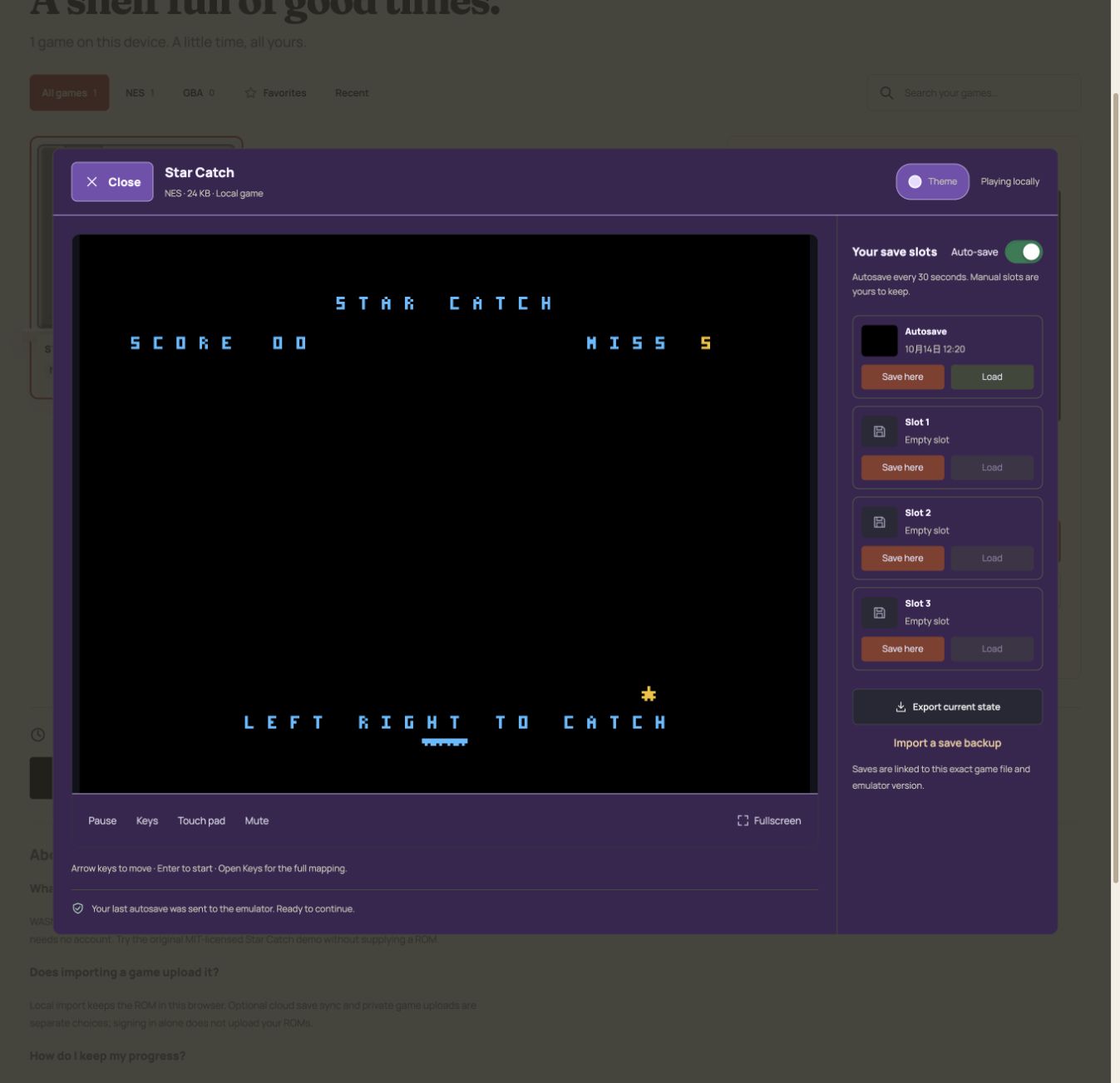
A renamed copy of the same ROM is fine. Another region, revision or patched copy may have a different fingerprint and cannot use that backup.
Use optional cloud saves
When account features are enabled, sign in on the first device and enable Sync saves from this device. Use Back up saves for existing local saves. Check that uploads have completed before switching devices.
On the second device, sign in to the same account and import the matching game locally, or download it from your private cloud library if you separately uploaded it. Open cloud save history to choose a revision and restore it into a local slot with the game closed. Cloud restore exports the current local slot before replacing it.
Signing in alone does not upload your ROM or enable save sync. New manual saves sync immediately when enabled; cloud autosaves are queued every five minutes and when closing a game. A queued upload is not proof of a completed backup.
What if both devices have newer progress?
Cloud history retains conflicting revisions for you to choose. Compare the device and timestamp before restoring. Keep an export from each device if you are unsure which branch you want. Avoid continuing on both devices until you have selected the progress to keep.
Can I bring a save from Delta, RetroArch or desktop mGBA?
The WASM Arcade importer supports its own JSON backups. Raw .sav, .srm and .state imports from other emulators are not supported. Sharing an emulator core name does not make save containers interchangeable. Do not rename an external save file and expect conversion.
Limits to check before switching
Local imports allow up to 64 MiB per file and expanded game. Cloud files are limited to 32 MiB each, with 256 MiB of logical account storage shared by games, saves, screenshots and history. Cloud storage is not end-to-end encrypted. Review Privacy and keep independent exports.
Practice the local transfer format with the original demo in our backup and restore tutorial. For phone controls, read the mobile guide.
Take your game room to another device
Sign in with Google or a verified email account to use cloud saves and a private cloud game library. Enable save sync in your cloud space; upload game files separately with Upload game. On another device, sign in to the same account, download your game and restore a compatible save from its history.
Cloud storage includes 256 MiB per account, with a 32 MiB limit per upload. Games run in your browser, not on a remote gaming server. Signing in alone does not upload your local games.
Ready to give it a try?
Open your game room, or start with the original Star Catch demo.
Open game room ↗Browse all guides